
 EN
EN Italiano (IT)
 Deutsch (DE)
 Français (FR)
 Español (ES)
 中国人 (CH)
 日本語 (JA)
How to Set Up Google Firebase on Your Application
Set up Cloud Sync on Fast Memo to keep your data synchronized across your devices, so you never lose what you jot down!
Prerequisites:
A Google account. If you don't have one, follow these simple steps to create one: Create a Google account.
Steps:
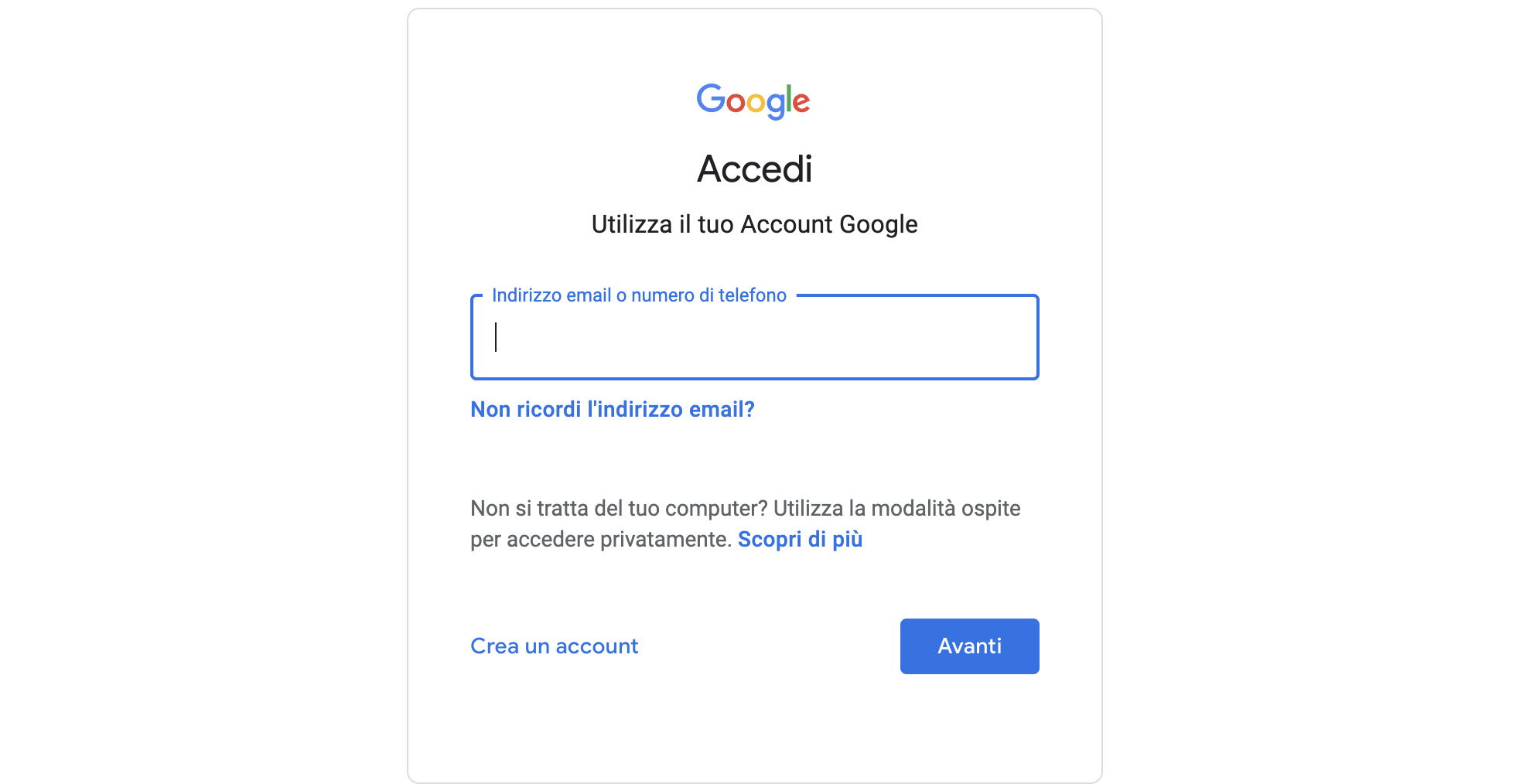
Go to the Google Firebase Console website and sign in with your Google account.
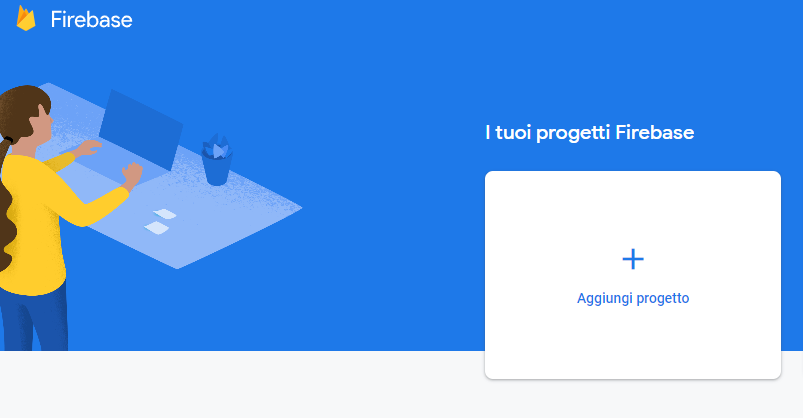
Click on 'Add project'.
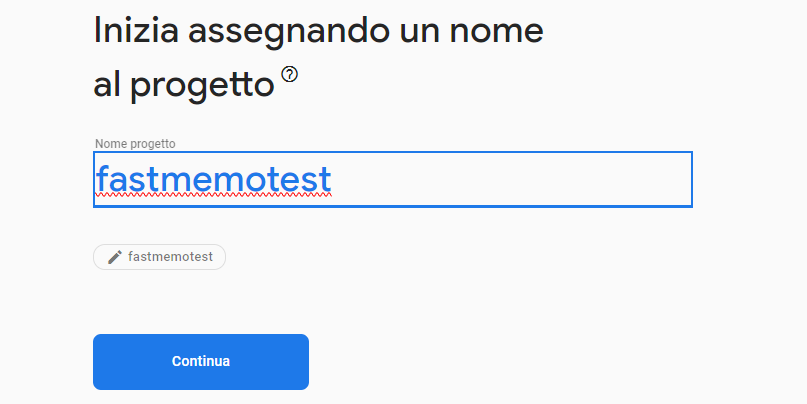
Choose a name for your project (you can enter a name of your choice).
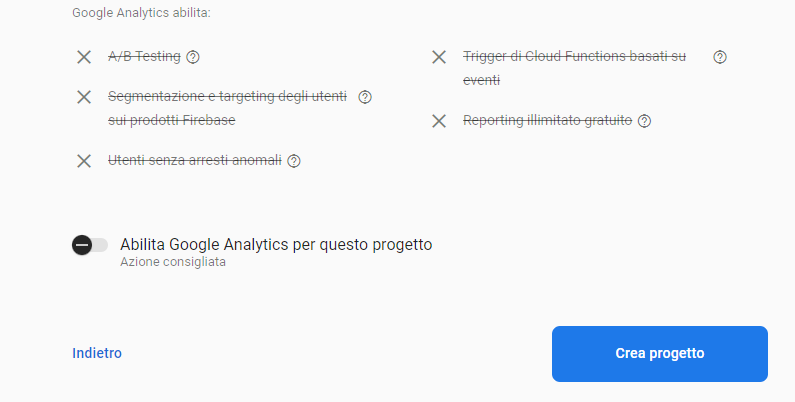
Disable 'Google Analytics' and click 'Create project', then 'Continue' when the process is completed.
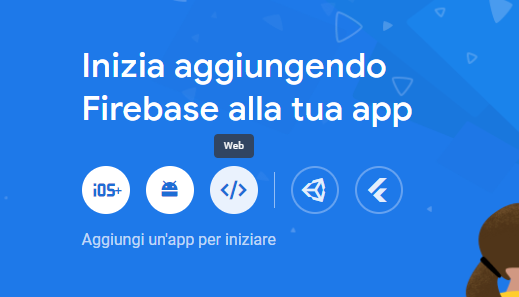
Click on the </> icon next to 'Web'.
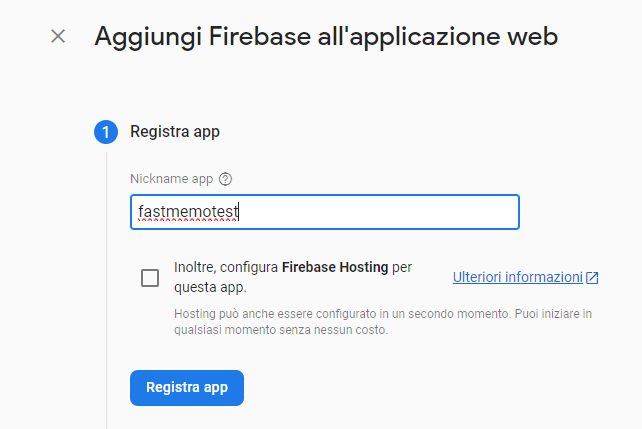
Give your app any name and click 'Register app'.
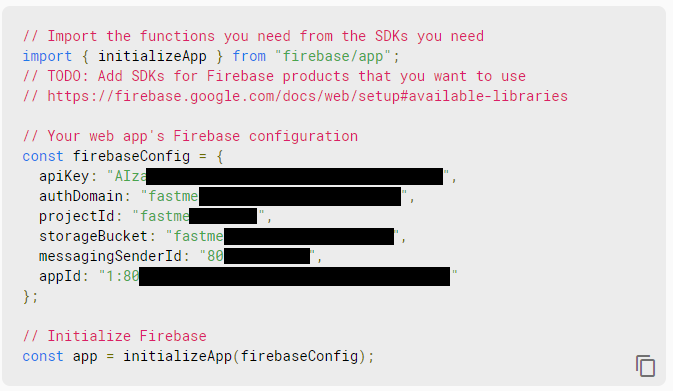
After registration, Google will provide you with important information that you need to enter in the Fast Memo app. It will be used in Settings → Cloud Sync. Make sure to save them, but you can always retrieve them from the 'Project Overview' by clicking on the '1 app' option.
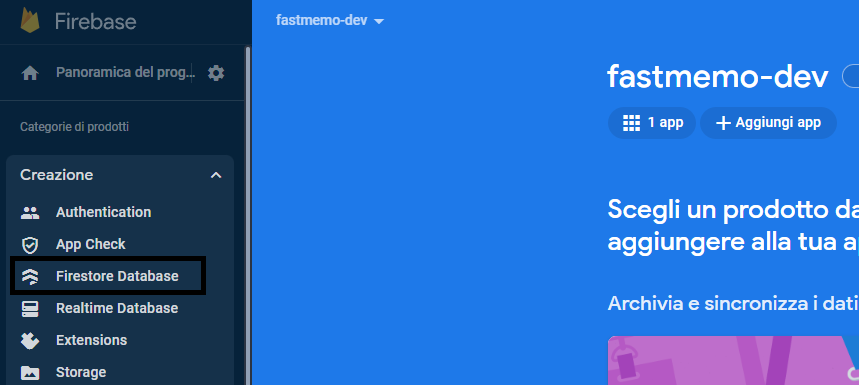
Return to your project page by clicking 'Go to the console'. In the sidebar, select 'Create' → 'Firestore Database'.
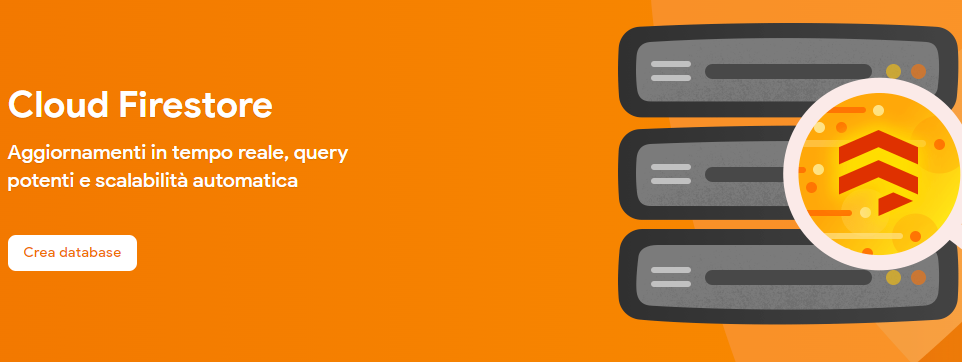
You will be asked to create a database. Click 'Create database'.
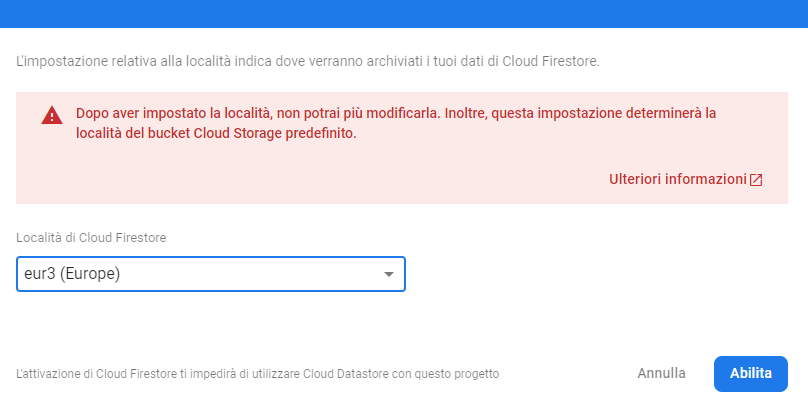
Select 'Start in production mode' and click 'Next'. Then choose the location for Cloud Firestore that is closest to you (e.g., 'Europe' if you live in Europe). Click 'Enable'.
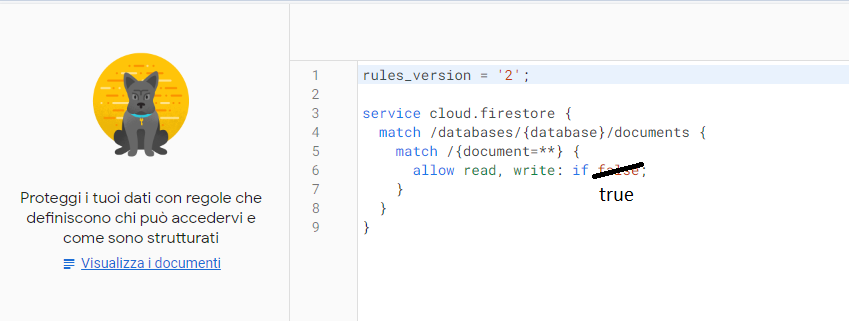
Once completed, you will be redirected to the Cloud Firestore page, which is always accessible from the sidebar under 'Project shortcuts'. Click on the 'Rules' tab at the top and change 'allow read, write: if false;' to 'allow read, write: if true;' to allow reading and writing.
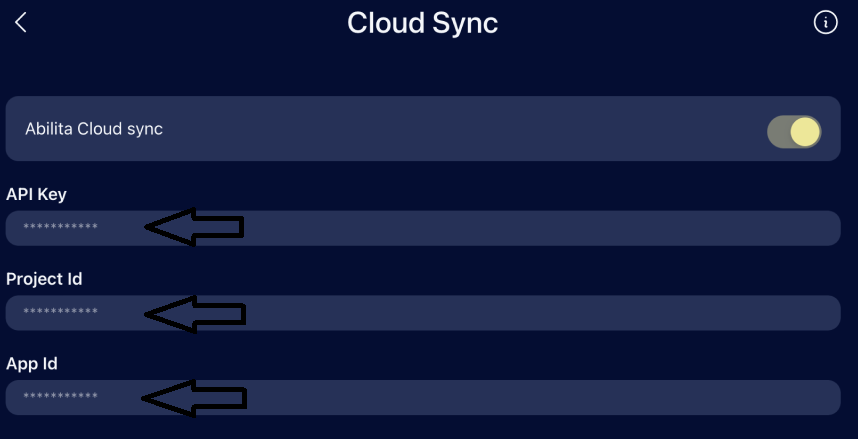
Now you are ready to connect Google Firebase to Fast Memo. Open the app, go to Settings (bottom left gear icon), and then to the 'Cloud Sync' section. Enable Cloud Sync (it may ask for a secret code) and enter the API Key, Project Id, and App Id that you obtained in step 7. After entering this information, save the settings, and cloud synchronization with Google Firebase will begin. All data, including notes and categories, will be saved on Google Firebase, and subsequent changes will be automatically synchronized in the database. You can connect multiple devices, and the data will be updated in real-time.
Important Note: Remember that you are responsible for the data on Google Firebase, as data management is autonomous. Any data loss is not attributable to the creator of Fast Memo.
Securing your vault with end-to-end encryption
Once Cloud Sync is connected, Fast Memo protects your data with end-to-end encryption. Your note contents are encrypted on your device with a password that only you know, so Google — and anyone else — only ever sees unreadable data. Here's what to expect:
Set an encryption password. The first time you connect, you choose an encryption password. It never leaves your device and is the key that unlocks your notes.
Save your recovery key. During setup you're shown a one-time recovery key. Write it down and keep it somewhere safe — it's the only way back in if you ever forget your password.
Unlock each device once. Every device that joins enters the same password to unlock the vault. After that the key is stored securely on the device, so you don't have to re-enter it at every launch.
Forgot your password? Use your recovery key to set a new one without losing any notes. As a last resort you can reset the encryption, which rebuilds the vault from the notes currently on your device.
Quick backup: Before a large sync or resetting your encryption, the setup, unlock and reset screens offer an optional Quick backup button. It exports a passphrase-protected file of your notes straight from your device — an extra safety net that works independently of the cloud. Your notes always stay on your device regardless.
Optional Steps:
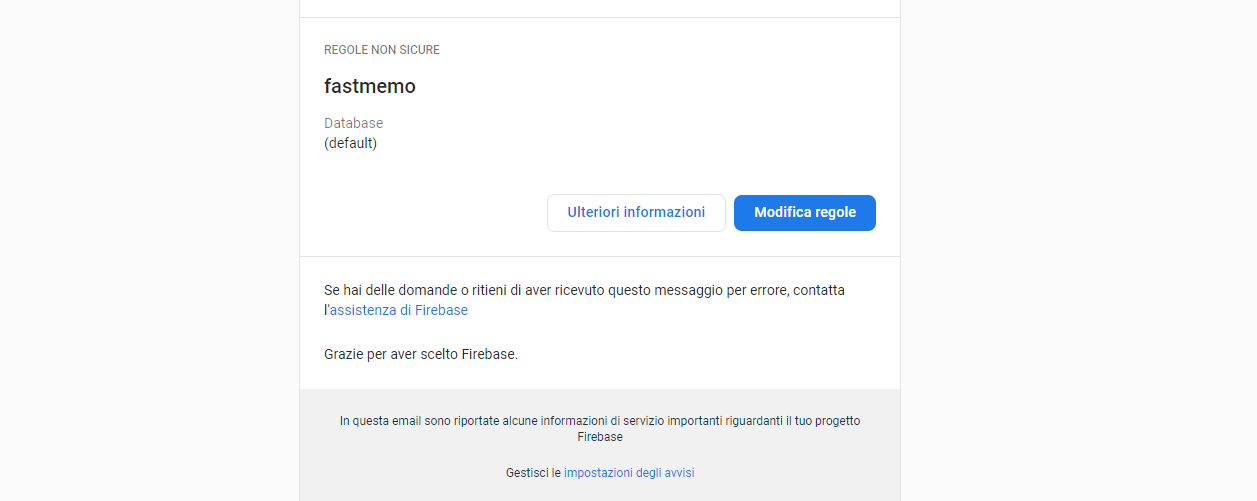
Disable Firebase preferences by clicking here.
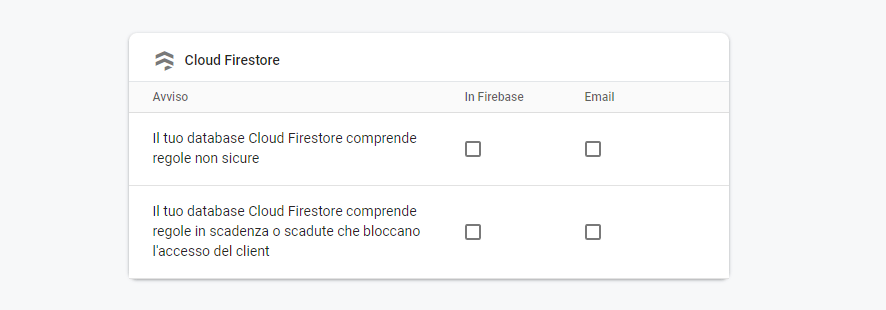
Scroll down and disable all 4 options.